


Switching practice management software is one of those projects every chiropractic owner dreads — for good reason. The demos look great. The sales rep promises a "seamless migration." Then two weeks after go-live you're staring at a schedule missing half your recurring patients, insurance eligibility that didn't carry over, and a front desk manually re-entering treatment plans while the waiting room fills up.
The migration itself is rarely what hurts you. It's the stuff nobody checked before flipping the switch — mismatched fields, appointment types that didn't map, outstanding claims that silently disappeared. This is a practice management data migration checklist for chiropractic clinics built around four checkpoints that actually catch problems: a pre-migration audit, mapping templates, parallel run tests, and structured post-go-live checks with clear rollback triggers.
Here's how you'd actually run it — not how a vendor whiteboards it.
Start With a Pre-Migration Audit (Because Your Old Data Is Messier Than You Think)
Before you export a single record, you need to know what you're actually moving. Almost every clinic overestimates how clean their existing data is. You've got duplicate patient records from the time someone spelled "Katherine" three different ways, appointment types created ad-hoc over five years, and inactive patients who haven't been in since 2019 still sitting in the active list.
The audit isn't glamorous, but it's where you decide what deserves to move and what should stay behind.
What a real pre-migration audit covers:
-
Patient record count and duplicates. Pull your total active vs. inactive patients. If you've got 4,200 records but only around 1,100 have visited in the last 18 months, you probably don't want to drag all 4,200 into the new system and pay per-record migration costs on ghosts.
-
Appointment type inventory. List every appointment type currently in use. Most clinics find 25–40 types when they actually only use 8–10. The rest are duplicates or one-offs somebody created and forgot.
-
Outstanding financials. Open claims, patient balances, unapplied credits, payment plans. This is the single most dangerous category to lose track of.
-
Insurance and eligibility data. Which payers, which plans, how the current system stores authorization info.
-
Document attachments. X-rays, intake forms, signed consents, SOAP notes. Know the file types and total volume — this is usually the slowest part of any migration.
-
Recurring/standing appointments. Care plan patients on set schedules. These almost never migrate cleanly and need a manual plan.
Keep a frozen export snapshot before you start — it's the single easiest way to verify later that nothing vanished.
The clinics that skip this step tend to discover their problems after go-live, when a patient walks in for a pre-booked adjustment that no longer exists in the system. The audit turns those surprises into a to-do list you handle on your own schedule.
One practical move: export a full data snapshot at the start of the audit and leave it untouched. That frozen copy becomes your reference point for every check that follows, and your safety net if something goes sideways.
Build Mapping Templates Before Anyone Touches the New System
Data migration lives or dies on field mapping — the process of deciding where each piece of information in your old system lands in the new one. It sounds tedious because it is, but this is where the invisible damage happens.
Never miss another patient appointment.
Spinesly helps you schedule, confirm, and manage every patient visit efficiently.
- Unified appointment management
- Automated patient reminders
- Staff and resource scheduling
No credit card required
A field without an obvious home in the new system doesn't throw an error. It just quietly gets dropped or dumped into a "notes" field where nobody will ever look. Insurance group numbers, referral sources, care plan visit counts, custom flags your front desk relied on — these are the fields that vanish.
A mapping template is a spreadsheet where you list every field in the old system, its match in the new one, and how the data should transform along the way. Here's a simplified version of what that looks like across a few common categories:
| Old System Field | New System Field | Transformation Needed | Risk if Skipped |
|---|---|---|---|
| Patient status (A/I/P) | Patient status (Active/Inactive) | Recode single letters to full labels | Everyone imports as "Active," schedule bloats |
| Appointment type "Adj-Follow" | Appointment type "Follow-up Adjustment" | Consolidate 6 legacy types into 3 | Booking rules and durations break |
| Insurance auth remaining | Authorization visits remaining | Map to new auth-tracking module | Front desk over-books past auth limits |
| Outstanding balance | Patient AR opening balance | Verify totals match to the dollar | Revenue silently disappears |
| Care plan (12 visits) | Treatment plan template | Manual recreate — no direct match | Recurring patients lose their schedule |
Notice that last row. Some things simply don't map. When there's no clean destination, you decide up front whether to recreate it manually, park it in a document, or let it go. Deciding that before migration means it's a plan. Discovering it after means it's a fire.
The mapping template also becomes your validation checklist later. When you're verifying the migration worked, you go row by row through that same document.
Run It in Parallel Before You Commit
This is the step most clinics skip and most regret skipping. A parallel run means you load your data into the new system while your old system is still live and running daily operations. You don't cut over. You test.
The goal is to catch mismatches while nothing is at stake.
A sensible parallel run looks like this:
-
Load the migrated data into the new system using your mapping template as the guide.
-
Reconcile the financials first. Pull total accounts receivable from both systems on the same date. If the old system shows roughly $18,400 in outstanding patient balances and the new one shows $16,900, stop. Something dropped. Don't move forward until the numbers match to the dollar.
-
Spot-check 30–40 patient records across different types — a long-time care plan patient, a brand-new intake, someone with a complex insurance setup, someone on a payment plan. Compare every field against the frozen snapshot.
-
Run a full booking simulation. Have front desk staff book, reschedule, and cancel a test appointment for each real appointment type. This catches broken scheduling rules faster than anything.
-
Generate a test claim for a common visit and confirm CPT codes, modifiers, and payer info carry through correctly.
-
Test document access. Open a handful of X-rays and signed consents to confirm attachments actually came over and aren't just broken links.
A quick visual of the parallel-run workflow can help coordinate staff during the test period.
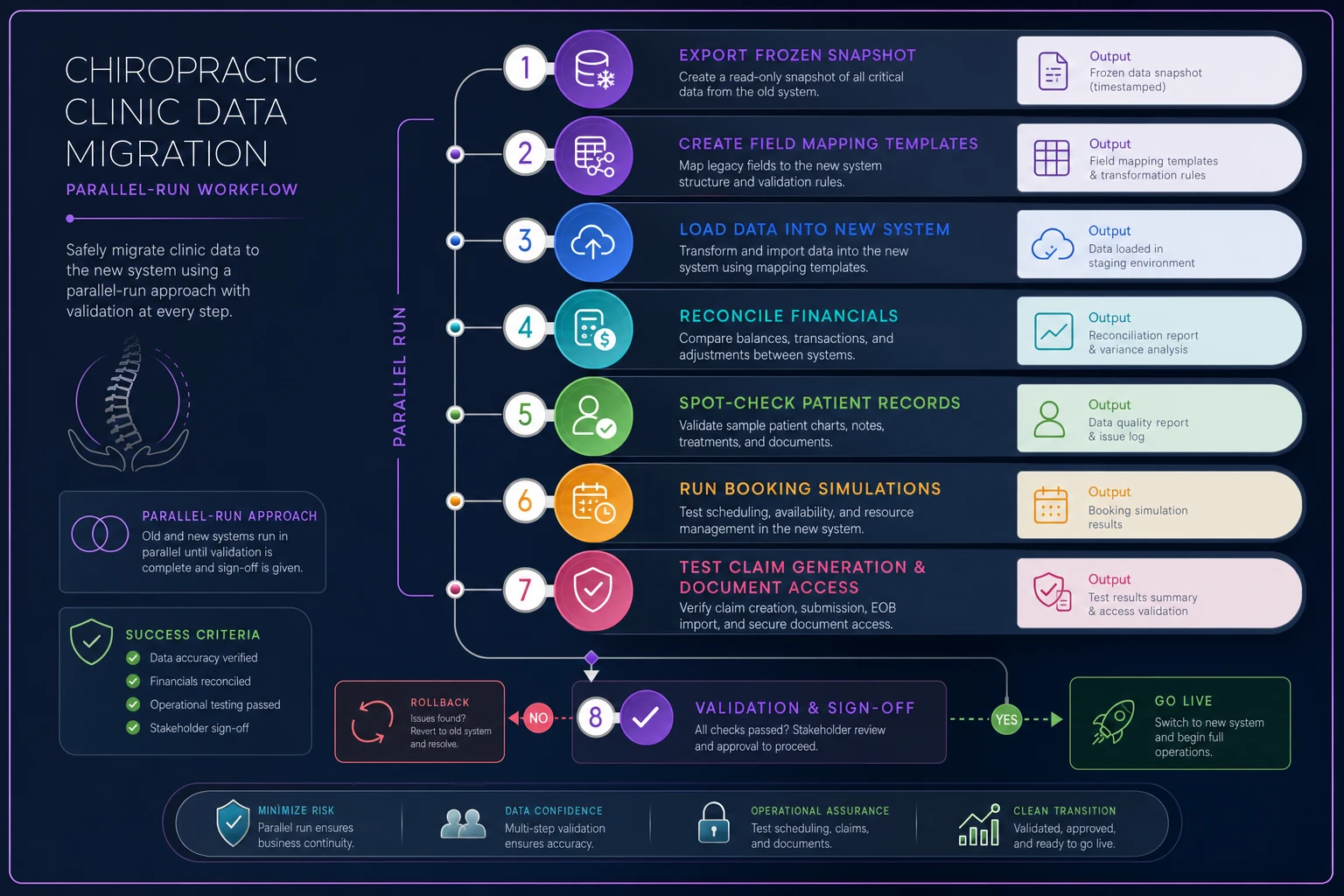
Run this for at least a few days, ideally a full week that includes a busy day. A migration can look perfect on a quiet Tuesday and fall apart when you're running 60+ visits on a Monday.
The clinics that handle this well treat the parallel run as a real dress rehearsal — same staff, same workflows, same appointment volume — just without abandoning the old system yet. Having a clear view of your operating metrics ahead of time gives you something concrete to compare against once the new system is live. The kind of baseline tracking covered in Clinic KPIs That Actually Move the Needle is exactly what you want in place before a switch like this.
Set Your Rollback Triggers Before Go-Live, Not During a Crisis
You need to decide in advance what would make you abandon the new system and go back to the old one. If you wait until you're in the middle of a bad go-live to make that call, you'll make it emotionally — at 4 PM, with a full waiting room and a panicking front desk.
Rollback triggers are pre-agreed conditions that automatically mean you go back. They take the judgment out of a stressful moment.
-
Financial discrepancy over a set threshold — more than 2% of total AR can't be reconciled after 48 hours.
-
Scheduling failure — the system can't reliably book, or the schedule is missing a meaningful chunk of recurring patients.
-
Claims can't submit — if you can't generate and send clean claims within the first two business days, your revenue cycle stops cold.
-
Widespread data corruption — patient records showing wrong balances, wrong plans, or crossed-over information.
Keep the old system live and untouched for a defined window — usually 2 to 4 weeks after go-live. Don't cancel the old subscription the day you switch. That overlap cost is cheap insurance. The clinics that cancel immediately to save a few hundred dollars are the ones who end up with no fallback when something breaks.
When a rollback actually makes sense
A rollback makes sense when the problem is systemic and revenue-threatening — claims aren't going out, financials won't reconcile, the schedule is fundamentally broken. Things you can't patch on the fly.
When it's a bad idea
Rolling back over cosmetic complaints or staff frustration with a new interface is a bad call. People will dislike any new system for the first couple of weeks purely because it's unfamiliar. That's a training issue, not a migration failure. Rolling back because "the buttons are in a weird spot" wastes the entire migration effort and demoralizes everyone involved.
The 30-Day Post-Go-Live Checks
Go-live isn't the finish line. The first 30 days are when the subtle problems surface — ones that didn't show up in the parallel run because they only happen at scale or over time.
Days 1–3:
-
Reconcile daily deposits against both systems
-
Confirm every claim generated is actually submitting
-
Verify the schedule matches expected patient volume
-
Watch for booking errors in real time
Days 4–10:
-
First payer remittances come in — confirm payments post correctly
-
Check that no appointment types are misbehaving
-
Verify recurring/care-plan patients are showing up on the right days
-
Audit a fresh batch of around 20 patient records against your snapshot
Days 11–20:
-
Review denial patterns — a spike here often points to a mapping error in codes or payer info
-
Confirm patient statements are generating accurately
-
Check that document attachments are still accessible and uploading correctly for new visits
Days 21–30:
-
Full financial reconciliation vs. the frozen snapshot
-
Compare monthly visit volume and collections against your pre-migration baseline
-
Decide on decommissioning the old system — only after everything checks out
One quiet failure mode worth watching: denials that trickle in 15–20 days after go-live because a modifier or payer ID mapped incorrectly. Everything looked fine at go-live because the claim submitted — it just gets rejected two weeks later. This is exactly why the 30-day window matters and why you don't declare victory on day two.
A Real Scenario
A two-provider clinic running roughly 340–380 visits a month decided to switch systems after years on an aging platform. Their original plan was a weekend cutover — export Friday, import Saturday, go live Monday. No audit, no parallel run.
They paused and restructured the project instead. The pre-migration audit alone flagged around 1,900 inactive patients they didn't need to migrate and 31 duplicate appointment types that collapsed down to 9. During the parallel run, they caught that patient balances were importing about $1,600 short because unapplied credits weren't mapping — a problem that would have quietly vanished from their books had they gone live blind.
Go-live still had bumps. A few care-plan patients needed their recurring schedules rebuilt manually, and the front desk grumbled about the new layout for a solid week. But financials reconciled to within a few dollars, claims submitted clean from day one, and by the 30-day mark collections were tracking right in line with their previous baseline. No rollback needed. The difference wasn't better software — it was the checks that caught the problems before they became revenue losses.
Who Should Slow Down Before Migrating
Not every clinic should attempt a migration on an aggressive timeline. Hold off, or bring in help, if:
-
You're in your busiest season. Migrating during peak weeks means any disruption hits when you can least afford it.
-
Your existing data is a genuine mess and nobody has time to run the audit properly.
-
You have significant outstanding AR and no clean way to reconcile it. Migrate mid-cycle carelessly and you risk losing track of real money owed to you.
-
You're a solo operator with no bandwidth to run parallel systems. In that case, plan a slower phased approach rather than a hard cutover.
Migration is a coordination problem as much as a technical one, and it's easier when your clinic already runs on documented systems and clear workflows. If your operations lean on one or two people's memory rather than written processes, the migration will expose that fast. Having your operational backbone in order first makes the whole thing significantly less painful — the framework in Map the Four Operational Systems That Let Chiropractic Clinics Scale is a solid baseline for the kind of documented structure that makes a switch like this far more manageable.
Bringing It Together
The clinics that migrate successfully aren't the ones with the fanciest new software or the biggest budgets. They're the ones who refused to skip the boring checkpoints — auditing their data honestly, mapping every field before touching the new system, running in parallel long enough to catch the hidden breaks, watching closely for a full 30 days, and deciding in advance what would make them pull the plug.
A migration done right barely registers with your patients. They book, get adjusted, their claims go out, and nobody notices anything changed. That invisibility is the whole goal. Keep your old system running until the new one has earned your confidence. Reconcile to the dollar. And never, ever migrate on a weekend and hope for the best.
Ready to streamline your chiropractic clinic operations?
Join 1,200+ clinics using Spinesly to save time, reduce scheduling errors, and improve patient care experiences.